If an athlete has their own heart rate monitor, you will want to save this as a personal monitor under their profile. If they are borrowing a monitor, you need to assign them a loaner, a different section of the help site.
Bluetooth Monitors
- Go to the General Settings of your iPad or iPhone and confirm that OnBeat can access Bluetooth.
- Swipe from the top of your iPad or iPhone to confirm that Bluetooth is enabled. The Bluetooth symbol should be highlighted in blue.
- Do not connect the heart rate monitor through the main settings of the iPad/iPhone. It must only be connected through the OnBeat app.
- If the user is new to OnBeat add them through the plus icon and fill in their profile information. If they already exist in the system, add them to the screen and select "Edit Profile."
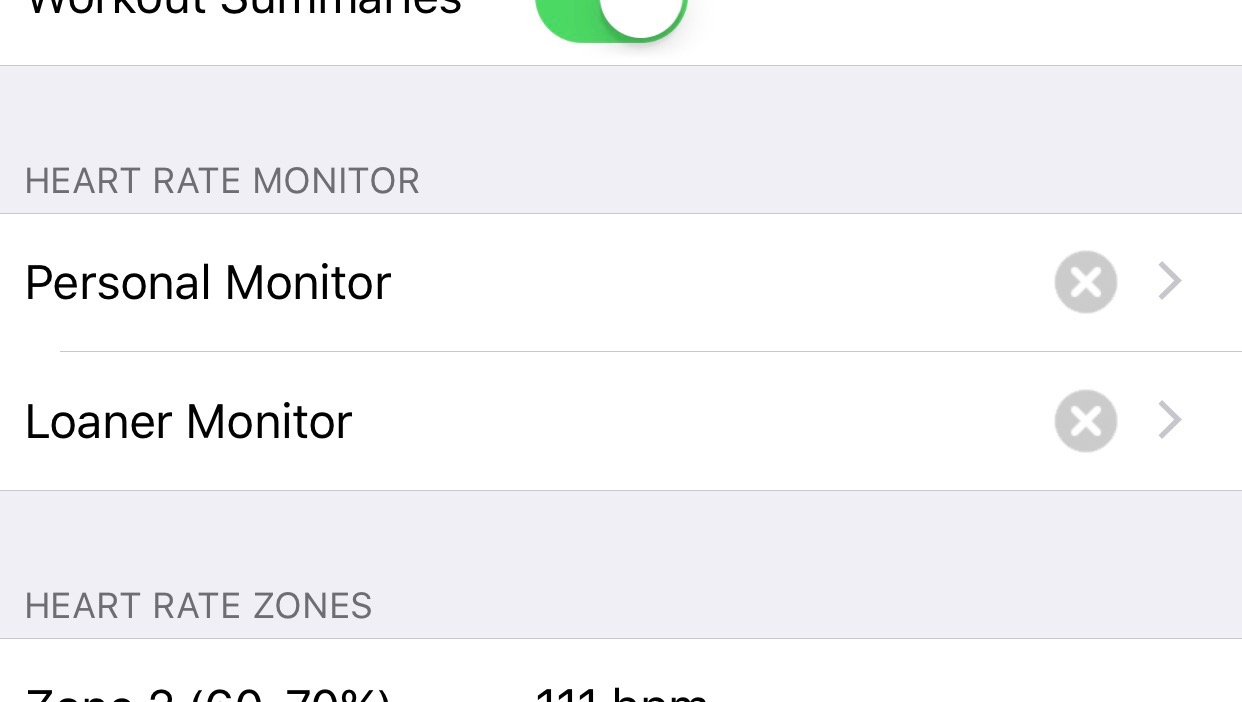
- Find the Heart Rate Monitor section and choose "Personal."
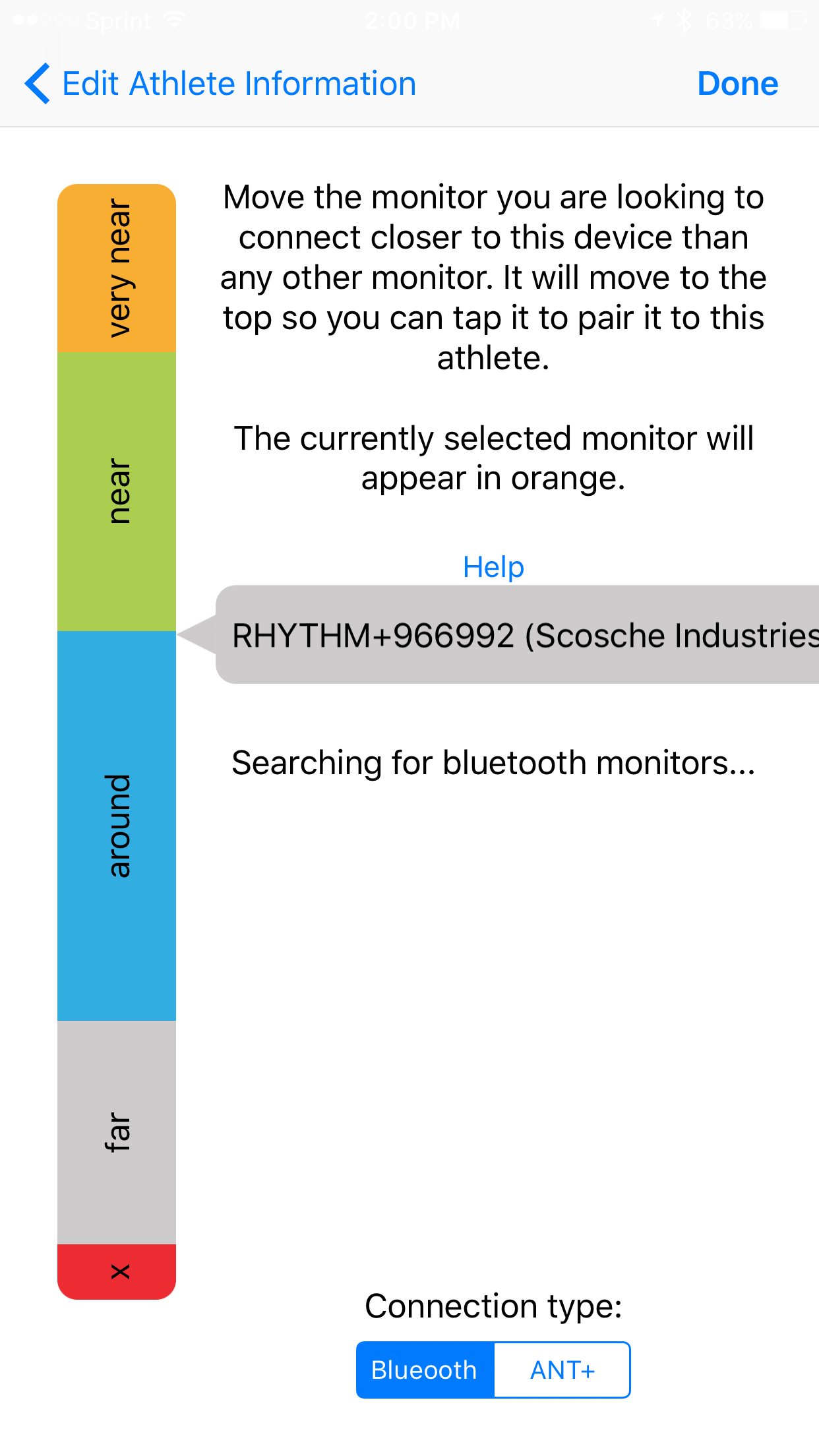
- Confirm the Connection type is set to Bluetooth on the monitor proximity screen.
- Turn on the heart rate monitor by having the user wear the monitor.
- All unassigned Bluetooth monitors will appear as grey on the proximity screen.
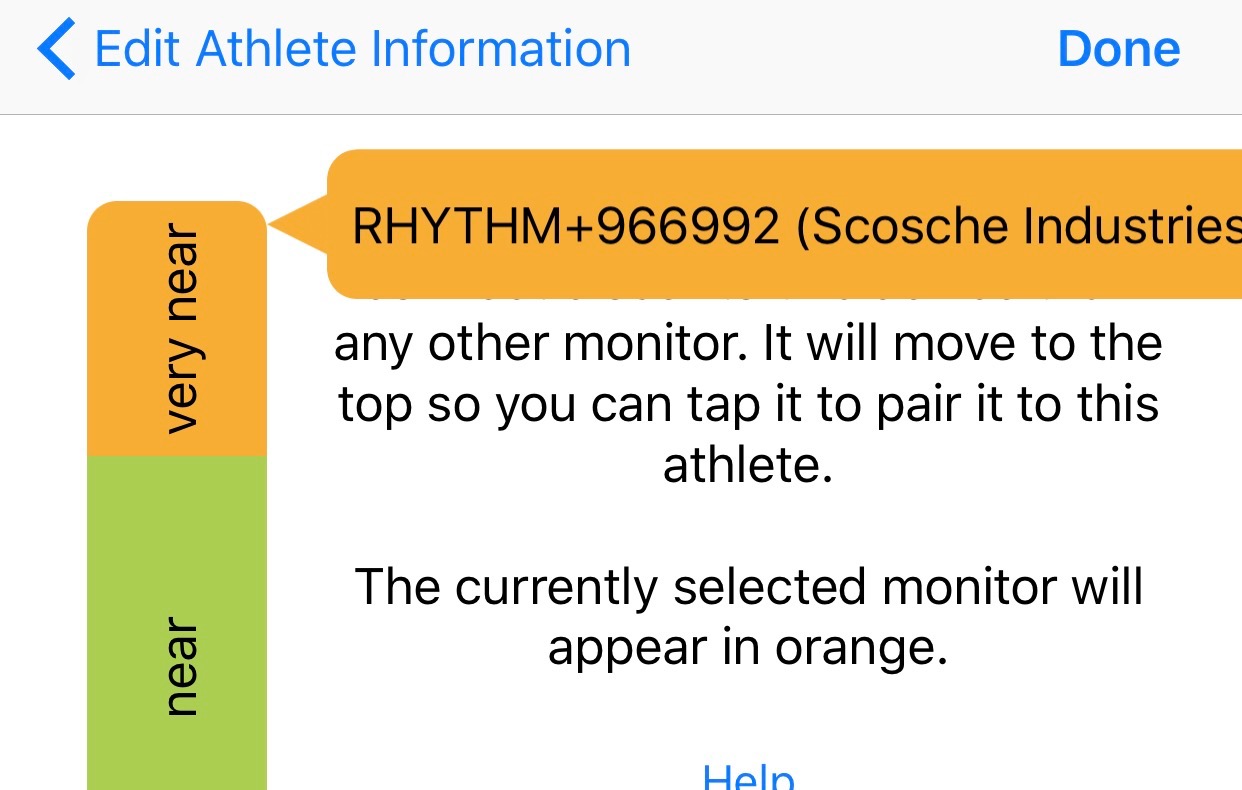
- Place the monitor you want to connect on the iPad/iPhone until it moves to the "very near" section and select it.
- The selected monitor will turn orange. Select "Done".
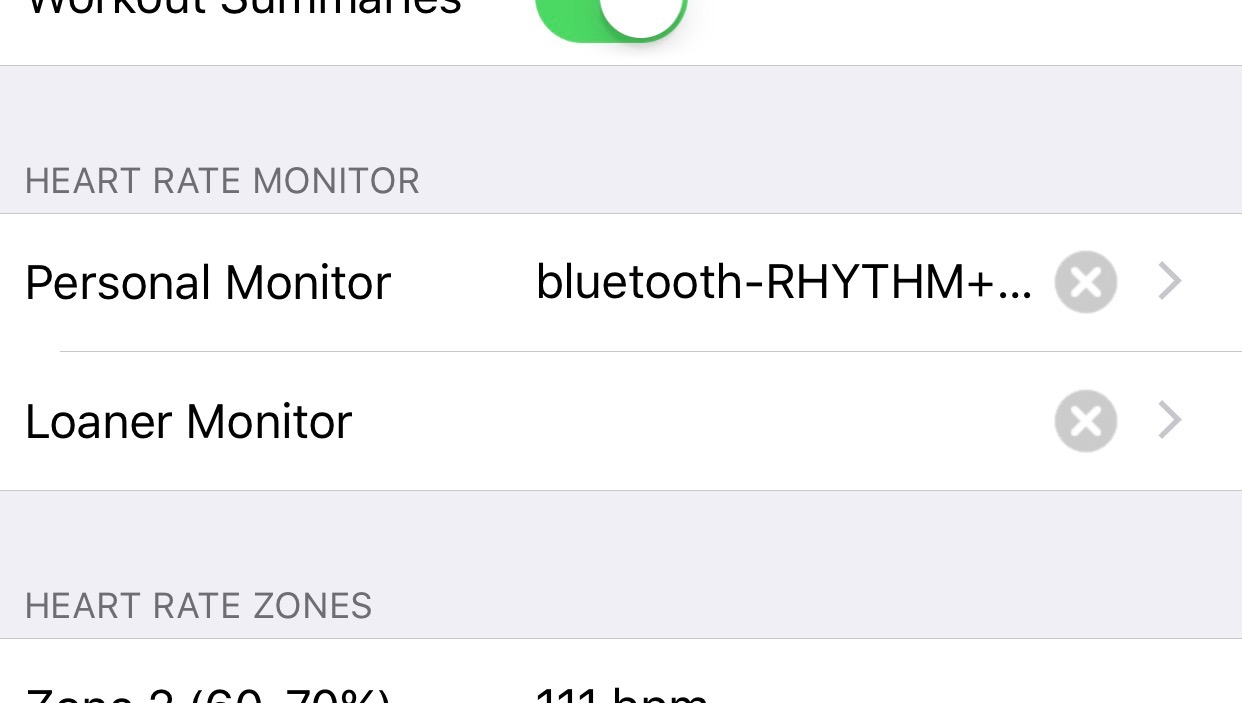
- Select "Done" again to save the change to the athlete's profile.


Unfortunately, the Apple Watch cannot connect to OnBeat because it cannot connect to iPads. The Apple Watch can only connect to a single personal iPhone. This restriction from Apple prevents us from adding this feature to OnBeat.