The WASP antenna receives real-time heart rate data and delivers it to the iPad/iPhone over your WiFi. Setting up the WASP can require a solid understanding of router settings. If you follow these instructions perfectly and the WASP does not connect to your WiFi, you may need to have an expert look at your router's settings.
Before following the steps below, please watch this video.
Configuration
The WASP must be connected to the same WiFi network as your iPad or iPhone. While configuring the WASP, plug it in and place it within a few feet of your WiFi router. Once successfully connected, you can permanently place the WASP.
- Download the WASP Utility app for your iPhone or iPad at https://itunes.apple.com/us/app/wasp-util/id966390978. The app is only needed to configure the WASP; it is not needed for OnBeat to operate.
- Turn on the WASP by holding the power button for three seconds. The red light should flash rapidly, and the green light should flash twice.
- Press the power button for one second to put the WASP in configuration mode. The red light should stop flashing rapidly, and the green light should flash once. In configuration mode, the WASP has created its own WiFi network for you to connect to and configure.
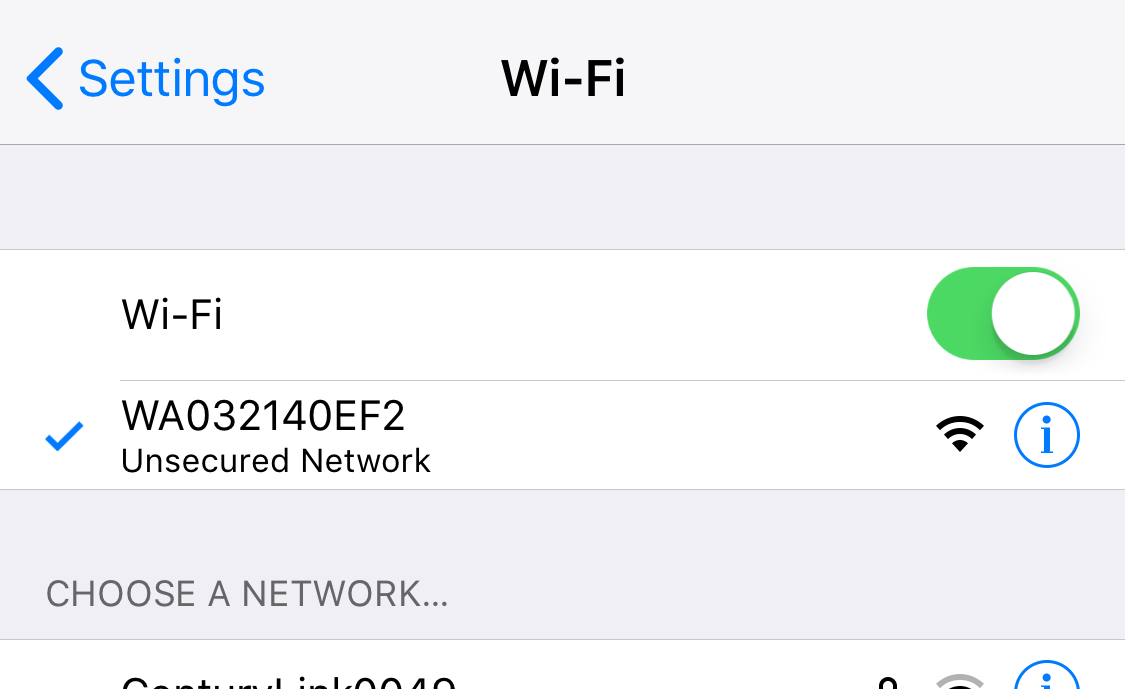
- On your iPhone or iPad, go to General Settings > WiFi. Turn over your WASP and take note of the last four digits of the serial number. Those digits will appear in the list of WiFi networks on your iPhone or iPad. It will look something like WA032140EF2. Join that WASP network. You will temporarily have no internet once you join the WASP network.
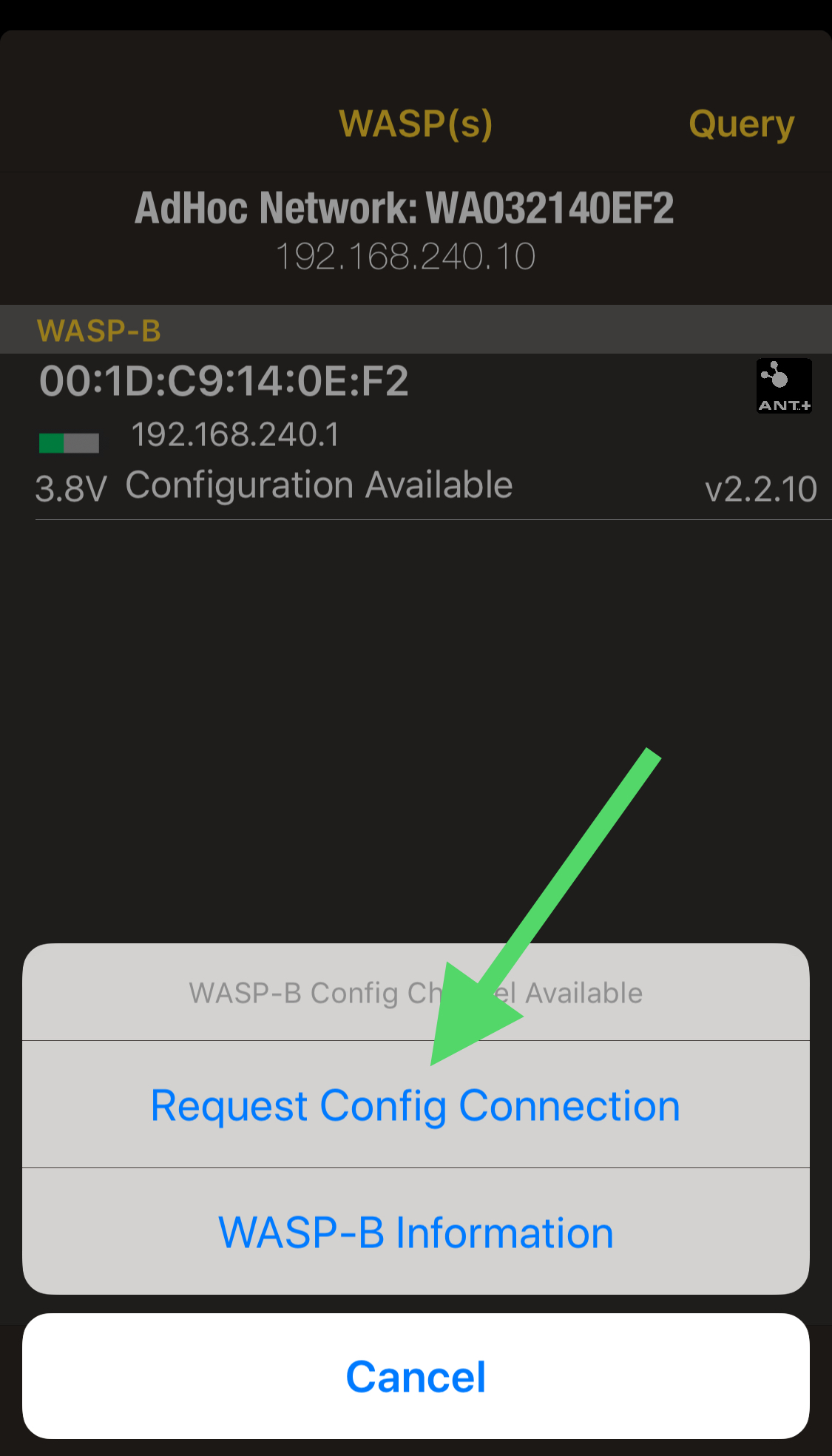
- Open the WASP Util app. Choose WASPs in the bottom left corner. Your WASP should appear in the list.
- Select the WASP from the list and choose "Request Config Connection."
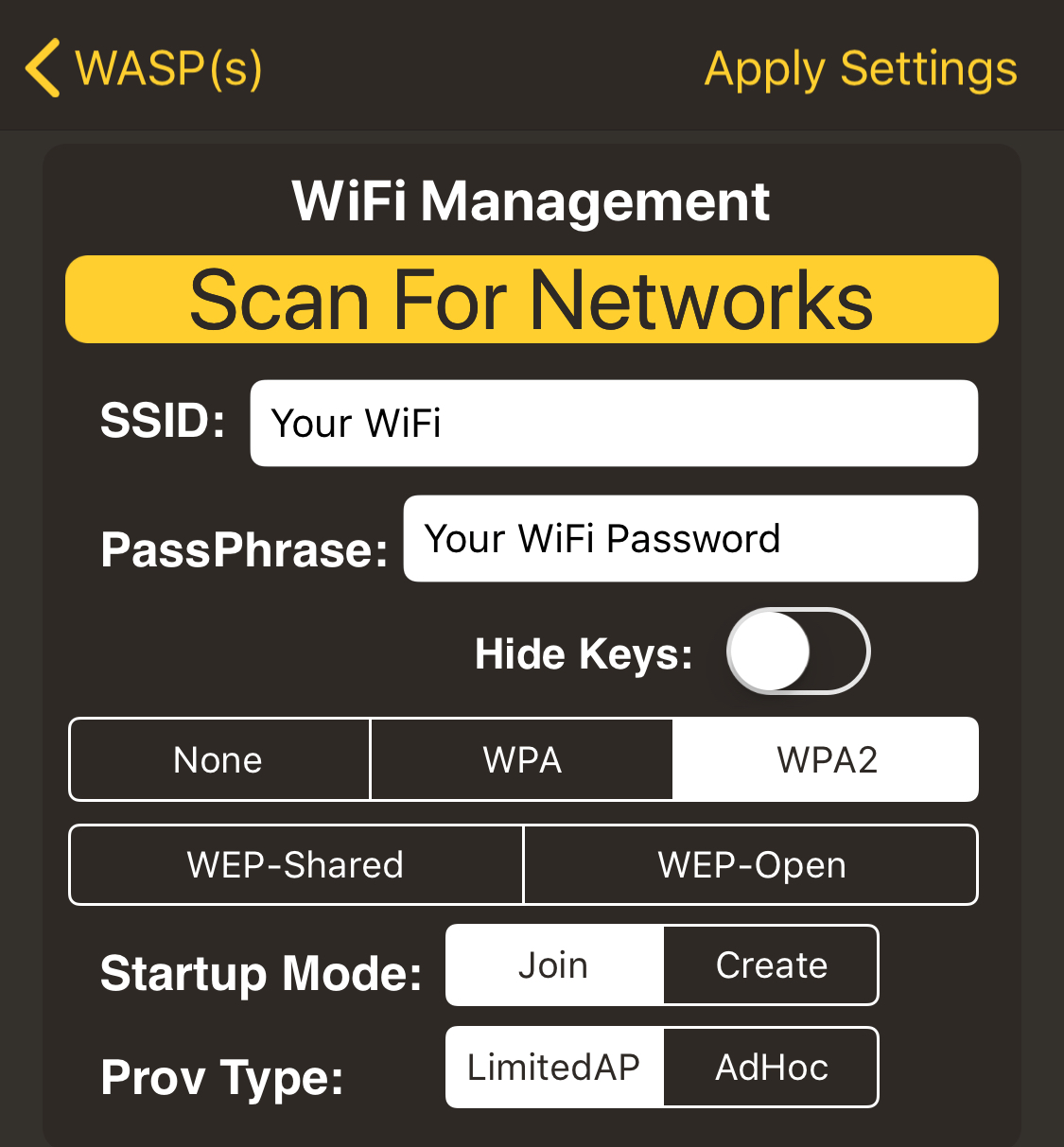
- Select "Scan For Networks" and choose the Wi-Fi network at your facility. The WASP will only connect to 2.4ghz networks.
- Enter the password for your Wi-Fi network.
- Scroll down to "Packet Saver" and disable the toggle.
- Select "Apply Settings" in the upper right. The WASP WiFi network should now turn off and attempt to join your facility's WiFi network. The red light should begin flashing rapidly and the green light should be flashing twice. Wait approximately 60 seconds for it to join your facility's WiFi.
- You will know the WASP successfully joined your WiFi network if the red light stops flashing rapidly and the green light flashes twice.
- Confirm your iPhone or iPad is connected to the same Wi-Fi network as the WASP you just configured.
- Go to the Settings Menu in OnBeat and select Connection Mode. Change to ANT+ mode, and the app will begin automatically receiving heart rate data from the WASP over the WiFi network to your iPad.
IMPORTANT: Changing the app to ANT+ mode disables the iPad's built-in Bluetooth hardware, and you will no longer be able to use it (as designed). In ANT+ mode, the app always looks for the heart rate monitors from the WASP on your WiFi network. Changing the connection mode back to Bluetooth tells the app to no longer look for the WASP on your network.
Placement
Once you have successfully connected the WASP to your Wi-Fi, you can move it to a permanent location.
- Keep the WASP within 30 feet of your router for best results. Having walls between the WASP and your router will degrade the signal.
- If you move the WASP too far from your router, it will lose connection. If the red light starts flashing rapidly, you will know you have lost connection. This does not freeze the OnBeat, however the heart rate numbers will not change on the screen as it looks for the WASP on the network.
- The WASP should be in the same room as the athletes and no more than 30 feet from the farthest athlete. To improve the range, you can add additional WASPs on opposite sides of the room.
Charging
When the WASP is talking to the WiFi properly, the red light will signify the charging status.
- Solid red - fully charged
- Slow flashing red - charging
- Rapid flashing red - not connected to the Wi-Fi (no heart rate data will be delivered to OnBeat)
Troubleshooting
- After selecting "Apply Settings", if the red light continues to flash red rapidly for more than 60 seconds, completely turn off the WASP by holding the power button for 30 seconds. Turn the WASP back on by holding the power button for 3 seconds. It will attempt to connect to the WiFi, and the red light should stop flashing rapidly within 60 seconds. If the connection to the WiFi network is still unsuccessful, go back to Step 3 and confirm that the WASP security setting of WPA or WPA2 matches what your router is set at.
- If the WASP periodically starts rapidly flashing red and the heart rate numbers freeze in the app, it most likely means the WASP is too far away from your router. You will need to move it closer to prevent it from disconnecting. Another option is to place a WiFi extender close to the WASP. The Netgear N300 works well and is inexpensive. You will need to connect the WASP and iPad/iPhone to the WiFi extender instead of the primary WiFi network.